To set up an Instagram auto reply, open Meta Business Suite on desktop, go to Inbox → Automations → Create automation, and pick an auto reply, away message, FAQ or keyword automation for your Instagram account. In the Instagram app, professional accounts can also add up to four FAQs with automatic answers and save replies as shortcuts.
Those built-in tools cost nothing and cover greetings, after-hours messages and a handful of fixed answers. They don't read the question: they match a first message, a time of day or a keyword. Below are the native options step by step, 20 auto-reply templates you can copy, and how to tell when keyword rules stop working and an AI agent answering from your own content is worth it.
Updated November 16, 2026. Instagram and Meta Business Suite steps were checked against Instagram's Help Center and Meta's Business Help Center on 2026-11-16; Meta renames menus often, so if a label differs in your app, look for the closest match.
How we made this page: the native steps come from Meta's own help articles (linked in Sources), the templates are written for this page and use placeholders rather than real brands, and the Asks screenshots are from our demo workspace. It was drafted with AI assistance under our editorial policy. Disclosure: Asks publishes this guide and sells an AI agent for Instagram DMs, which we describe in one section near the end.
Your options at a glance
| Tool | Where | What it does | Limits |
|---|---|---|---|
| Frequently asked questions | Instagram app (Business or Creator account) | Shows up to four questions to people starting a chat, each with an optional automatic answer | Four questions; people who tap one land in your message Requests |
| Saved replies | Instagram app | Lets you insert a stored message by typing a shortcut | Not automatic: you still send it |
| Auto reply (greeting) | Meta Business Suite → Inbox → Automations | Replies when someone messages you for the first time | One fixed message |
| Away message | Meta Business Suite | Replies when you're not available | One fixed message per schedule |
| FAQ, location, contact information, hours | Meta Business Suite | Suggests questions and replies with fixed answers | Fixed answers |
| Custom keywords | Meta Business Suite (desktop only) | Replies when a message contains specific words | Exact keywords, no understanding |
| Comment to message | Meta Business Suite | Sends a DM when someone comments a keyword on your post | Keyword-triggered; one private reply per comment |
| Meta Business Agent (AI) | Meta, where available to your account | Meta's own AI agent answering for you | Limited countries and accounts; turning it on pauses your other automations |
Meta also notes that some messaging features for businesses are unavailable in Europe and Japan, so if you're there and a menu is missing, that may be why.
How to set up FAQs in the Instagram app
Instagram's FAQ feature is for Business and Creator accounts. From Instagram's Help Center:
- Tap Messages at the bottom of the app.
- Tap the more actions menu (three dots), then Tools.
- Under Tools, tap Frequently asked questions.
- Turn on Show Questions to enable automated responses.
- Under Questions, tap Add Question, enter the question and an optional automated response, and tap Save.
You can add up to four questions, and Instagram may suggest some for your business. If you already have FAQs on your Facebook Page in Messenger, you can import them. One catch from Meta's help article: when someone taps a question, their message goes to your Requests folder, and you need to accept the request before you can reply to them yourself.
How to use saved replies
Saved replies are shortcuts, not automation. In the Instagram app, hold down a message you've sent, tap More, then Save, and give it a keyboard shortcut. Next time, type the shortcut and tap the chat icon that appears to fill in the full reply. Instagram also suggests saved replies as you type. They're worth setting up for the answers you send ten times a day, even if you automate nothing else.
How to set up auto replies in Meta Business Suite
Meta Business Suite runs automations for a Facebook Page, an Instagram account and a WhatsApp Business account from one place. From Meta's Business Help Center:
- In Meta Business Suite on desktop, choose the right business portfolio in the top-left menu.
- Go to Inbox and click Automations.
- Click Create automation in the top right.
- Pick a template: Auto reply, Away message, Frequently asked questions, Location, Contact information, Hours, Custom keywords, Comment to message, Identify unanswered messages or Assign admins.
- Follow the on-screen steps, choosing Instagram as the channel, and click Create automation.
- Turn the automation on or off with the toggle under Status.
Keyword automations are only available on desktop. You can also Start from scratch: choose a condition (a new message arrives, a label is added, a message is assigned) and one or more actions (send a message, add labels, mark the thread). Meta says some automations aren't available on every channel, and custom automations run before template ones.
If you later turn on Meta Business Agent, Meta's AI agent, Meta pauses your existing automations such as away messages and instant replies. We compare that agent with a dedicated one in Meta Business AI vs a dedicated AI agent.
20 Instagram auto-reply templates
Replace the bracketed parts. Keep each message short enough to read in a notification, and always tell people what happens next.
Greeting (first message)
- "Hi! Thanks for messaging [Business name]. Ask us anything about [products/services], and if it's about an order, send your order number and we'll check it."
- "Hey 👋 Welcome to [Business name]. Quick answers: shipping info is at [link], returns at [link]. For anything else, type your question and someone will reply within [time]."
- "Thanks for reaching out! We usually reply within [time] between [hours] [time zone]. While you wait, our FAQ might already have the answer: [link]"
- "Hi there! Are you asking about an order, a product, or something else? Reply with one word and we'll take it from there."
Away and after hours
- "Thanks for your message! We're offline right now and back at [time] [time zone]. We'll reply first thing; you don't need to send it again."
- "We're closed for [holiday] until [date]. Orders still ship from [date]. For order questions, send your order number and we'll reply when we're back."
- "Our team is away at the moment. If it's urgent, email [email]. Otherwise we'll reply here by [time] tomorrow."
Answers to common questions
- Shipping: "We ship to [countries]. Standard delivery takes [X–Y] business days and costs [price], free over [amount]. Details: [link]"
- Returns: "You can return unused items within [X] days of delivery. Start a return here: [link]. Refunds go back to your original payment method within [X] days of us receiving the item."
- Sizing: "Our sizes run [true to size/small/large]. The size guide with measurements is here: [link]. Send us your usual size and the item you're looking at and we'll suggest one."
- Stock and restocks: "If an item shows as sold out on [website], it's out of stock everywhere. Tap 'Notify me' on the product page to get an email when it's back."
- Order status: "To check an order, send us your order number (it's in your confirmation email and starts with [#]). You can also track it any time here: [link]"
Comment to message (sent as a DM when someone comments a keyword)
- "Thanks for commenting! Here's the link you asked for: [link]. Any questions about it, just reply here."
- "Hi [first name]! You asked about [product] on our post. It's [price] and available in [options]. Want help choosing?"
- "Thanks for joining in! Here's your [discount code/guide]: [code or link]. It's valid until [date]."
Story replies and mentions
- "Thank you for the mention! 🙌 Mind if we share your story on our account?"
- "Glad you liked it! The [product] in that story is here: [link]. Let us know if you have questions."
Leads, bookings and handoff
- "Thanks for your interest in [service]! To send you a quote, could you tell us [detail 1], [detail 2] and the best email to reach you?"
- "You can book a time with us here: [booking link]. If none of the slots work, reply with what suits you and we'll try to fit you in."
- "Thanks for explaining. I'm passing this to [team/name], who can help with [topic]. They'll reply here by [time]."
Where keyword auto-replies break
Keyword and FAQ automations are predictable, which is their strength. They break in the same places for almost every account:
- People don't use your keywords. "How much is delivery to Toronto?" doesn't contain "shipping". Add synonyms and you start matching the wrong messages instead.
- One message, several questions. "Do you have it in medium and can it arrive by Friday?" gets one canned answer, or none.
- Follow-ups. A keyword rule answers the first message. "And for Canada?" has no keyword and no memory of the first question.
- Answers that depend on data. "Where's my order?" needs the order. A template can only ask for the number and promise someone will look.
- Four FAQs fill up fast. Most accounts have twenty common questions, not four.
- Languages. Keywords are per language. A shop with customers in three languages needs three sets of rules.
- Answers go stale. A fixed reply saying "free shipping over $50" stays wrong until someone remembers to edit it.
- No exit. A customer who gets the same canned reply twice is more annoyed than one who got none.
If two or three of those describe your inbox, you've outgrown keyword rules.
When an AI agent beats keyword flows
An AI agent reads the whole message and answers from your own content: your website, help center, policies and product pages. It handles synonyms, several questions at once, follow-ups and other languages without a rule for each. It can look up live data through integrations, and it hands the conversation to a person when it can't help or when the customer asks.
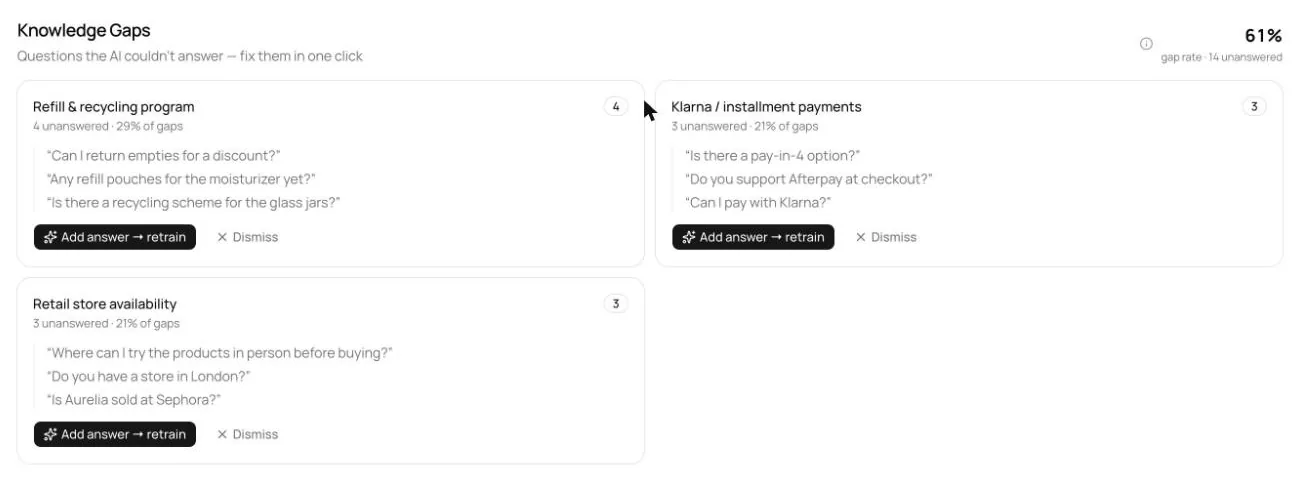
It isn't magic, and it isn't the right call for everyone. The agent is only as good as your content, so the work moves from writing rules to keeping your knowledge base accurate. Our guide to the knowledge base chatbot covers that part. The useful habit is to review the questions the agent couldn't answer and fill those gaps:
Native tools are enough when: one or two people handle the inbox, a few questions make up most messages, and you mostly need a greeting, an away message and fast links. Comment-to-DM giveaways and lead magnets are also well served by Meta's own Comment to message automation or by flow builders such as ManyChat, which specialize in keyword campaigns.
An AI agent is worth it when: DMs are a real support or sales channel, questions vary, customers ask follow-ups, you answer in more than one language, or the same customers also reach you on your website, WhatsApp or email and should get the same answer everywhere.
How Asks answers Instagram DMs
Asks connects an Instagram Business or Creator account through Instagram's official Business Login and answers DMs with an AI agent trained on your content, alongside your other channels:
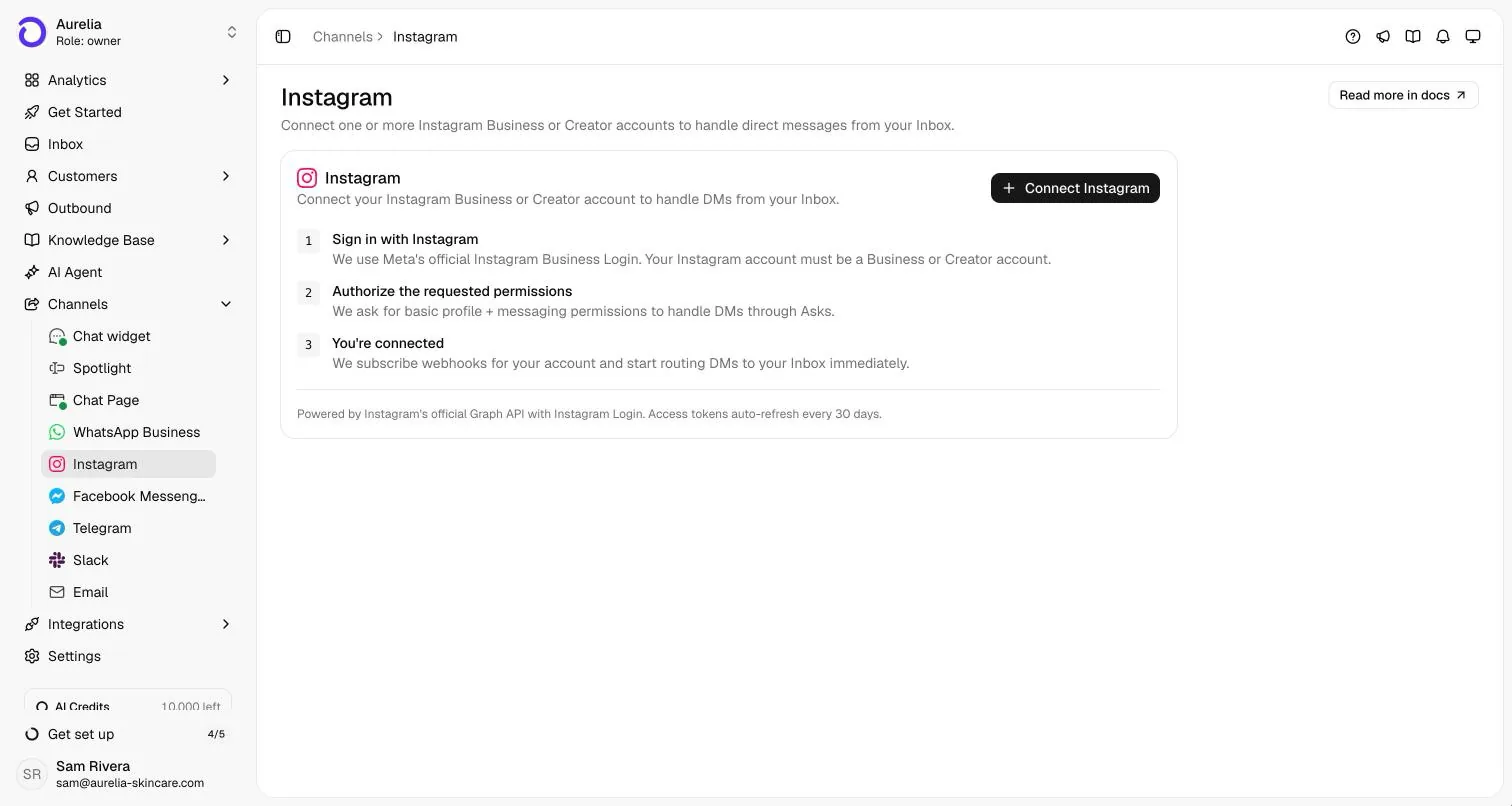
What it covers and what it doesn't:
- DMs, including story replies and story mentions, land in your inbox. Comments on your posts aren't part of the integration, so keep Meta's Comment to message automation for comment campaigns.
- The AI replies within Meta's 24-hour window. Between 24 hours and 7 days after the customer's last message, only your team can reply (Meta's human agent window), and Asks sends their replies under it. After 7 days, nobody can reply until the customer writes again.
- Replies use Instagram's own formats: link buttons, product cards with a photo and a button, and quick-reply chips. Link buttons show only in the Instagram mobile app.
- Photos and voice messages are understood, and replies your team sends from the Instagram app are mirrored into the same conversation and take it over from the AI.
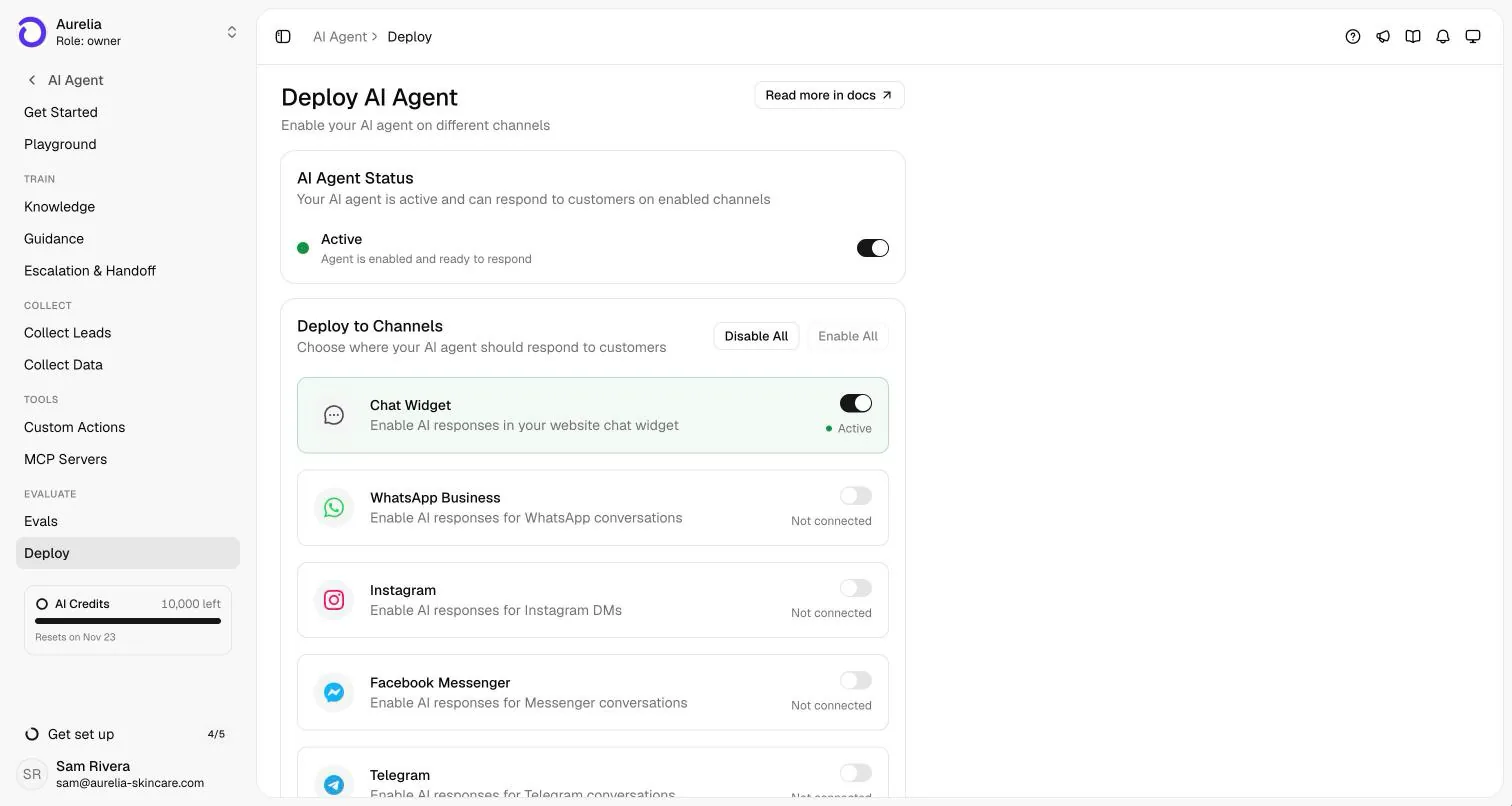
You switch the agent on per channel, so you can connect Instagram first and turn AI on once you've seen a day of real messages:
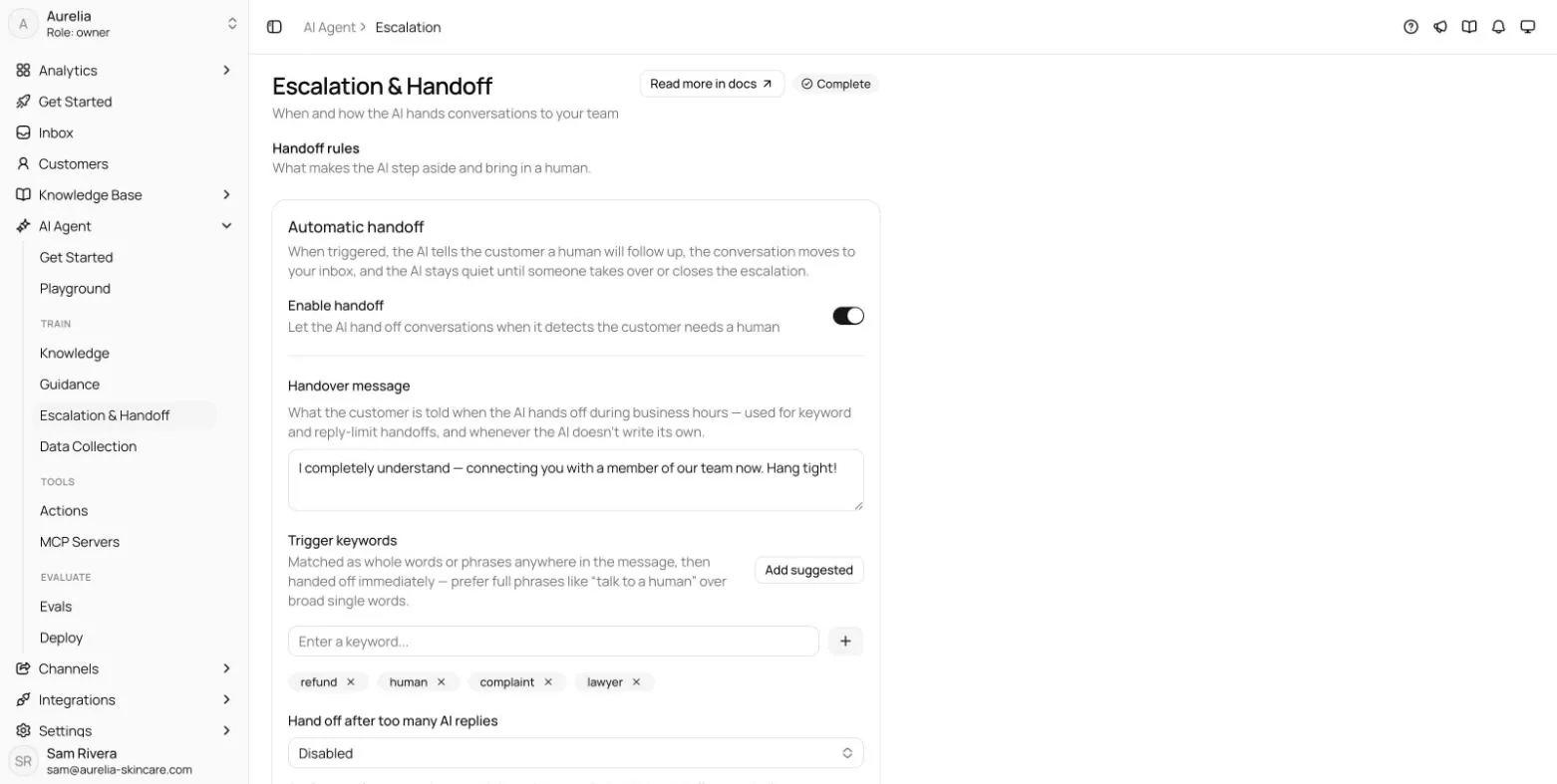
And you decide when a person takes over, instead of the customer getting the same canned reply twice:
Illustrative example (not a real customer conversation):
Customer: do u ship to canada and how long does it take? also is the linen shirt true to size
Agent: Yes, we ship to Canada: standard delivery takes 6–9 business days, and the shipping rates are on our delivery page [Delivery info]. The linen shirt runs slightly large, so most people size down one. Want me to send the size guide?
Customer: yes pls. and can i return it if it doesn't fit
Agent: Here's the size guide [Size guide]. And yes: unworn items can be returned within 30 days of delivery, starting from our returns page [Start a return].
The answers in that example would come from the store's own delivery, sizing and returns pages. If those pages don't say it, a well-configured agent says it doesn't know and hands off rather than guessing. More on the channel: Asks for Instagram. The same agent and inbox cover Messenger, and the team works everything from one shared inbox.
Instagram messaging rules every auto reply follows
Whatever tool sends your replies, Meta's messaging rules apply:
- 24-hour standard window. Automated replies can be sent within 24 hours of the customer's last message. When the conversation starts from a Click-to-Direct ad, the window can last up to 7 days.
- Human agent replies. A person can reply after the 24 hours under Meta's Human Agent tag, up to 7 days after the customer's last message.
- Private replies to comments. A business can send one private message to someone who commented on its post, ad or reel, within 7 days of the comment. The conversation continues only if the person replies.
- Message requests. People who don't follow you land in Requests, and replies there work differently, as with the FAQ catch above.
Frequently asked questions
How do I set up an auto reply on Instagram?
For a greeting or away message, use Meta Business Suite on desktop: Inbox → Automations → Create automation, choose Auto reply or Away message, select your Instagram account, and switch it on. For automatic answers to common questions, add up to four FAQs in the Instagram app under Messages → ⋯ → Tools → Frequently asked questions.
Can Instagram auto reply to comments?
Yes, with Meta Business Suite's Comment to message automation, which sends a DM when someone comments specific keywords on your post. Meta allows one private reply per comment, within 7 days of it. Asks's Instagram integration handles DMs, not comments, so keep the native automation for comment campaigns.
Is Instagram auto reply free?
Yes, Meta's built-in automations in Meta Business Suite and the Instagram app's FAQs and saved replies don't cost anything. Paid tools come in when you want flow builders, AI answers, or one inbox for several channels and teammates.
Can I set up an auto reply on a personal Instagram account?
The FAQ and professional inbox tools are for Business and Creator accounts, and Meta Business Suite connects professional accounts. Switching to a professional account is free in the Instagram app's settings.
Why isn't my Instagram auto reply working?
Check that the automation's Status toggle is on and that Instagram is selected as its channel, that you're in the right business portfolio, and that you set keyword automations up on desktop. If you turned on Meta Business Agent, Meta pauses other automations. Some messaging features are unavailable in Europe and Japan.
Can an AI agent reply to Instagram DMs after 24 hours?
No. Meta allows automated replies only within 24 hours of the customer's last message (longer for some ad conversations). After that, a person can reply under Meta's Human Agent tag for up to 7 days. In Asks, the AI stops at 24 hours and your team can reply from the inbox until day 7.
Sources
Checked 2026-11-16.
- Meta Business Help Center, set up inbox automations in Meta Business Suite on desktop: facebook.com/business/help/318238182723007
- Meta Business Help Center, professional features in the Instagram professional inbox (saved replies): facebook.com/business/help/1264898753662278
- Instagram Help Center, frequently asked questions on Instagram Chats: help.instagram.com/561062241952036
- Instagram Help Center, set up frequently asked questions on Chats: help.instagram.com/4153704678000867
- Meta for Developers, Instagram messaging overview (messaging windows, Human Agent tag): developers.facebook.com/documentation/business-messaging/instagram-messaging/overview
- Meta for Developers, Instagram private replies: developers.facebook.com/documentation/business-messaging/instagram-messaging/features/private-replies
- Asks Instagram channel documentation: docs.asks.app/channels/instagram
Ray is the pen name of the founder of Asks, who writes here about the economics of customer support and AI agents. How we write
Put an AI support agent on your site today
Asks trains on your website, docs, and help center — then resolves customer conversations on every channel, and hands off to your team when it matters.