WordPress install
Add an AI chatbot to your WordPress site.
To add the Asks AI chatbot to WordPress, copy your widget snippet from Asks and paste it site-wide, either with the free WPCode plugin or in your theme’s footer. The agent then answers visitors on every page from your own site’s content, and hands off to your team when it should.
7-day free trial · card required · cancel anytime
Updated By Ray, founder of AsksProduct facts checked against Asks on
Install
Three steps, about five minutes.
- 1
Copy your snippet from Asks
In Asks, open Channels → Chat widget → Deploy and copy the snippet. It already contains your widget key and looks like<script src="https://cdn.asks.app/embed.js" data-widget-key="…" async></script>. - 2
Paste it in your site’s footer
In the free WPCode plugin, open its Header & Footer screen, paste the snippet into the Footer box and save. Or add it right before the closing </body> tag in your theme’s footer.php, ideally in a child theme so a theme update doesn’t remove it. - 3
Check that it’s live
Open your site in a new tab. The Deploy tab’s Installation status turns green when Asks detects the widget, and a test message shows up in your inbox.
WordPress requirement: Self-hosted WordPress can install WPCode on any site. On WordPress.com, installing plugins depends on your plan.
Step-by-step screenshots of the WordPress side are in the WordPress install guide. The same snippet shows Spotlight, the “Ask anything” bar, if that is your live on-site channel, so you never paste twice.
Sources
- WPCode on WordPress.org (checked Nov 2026)
After install
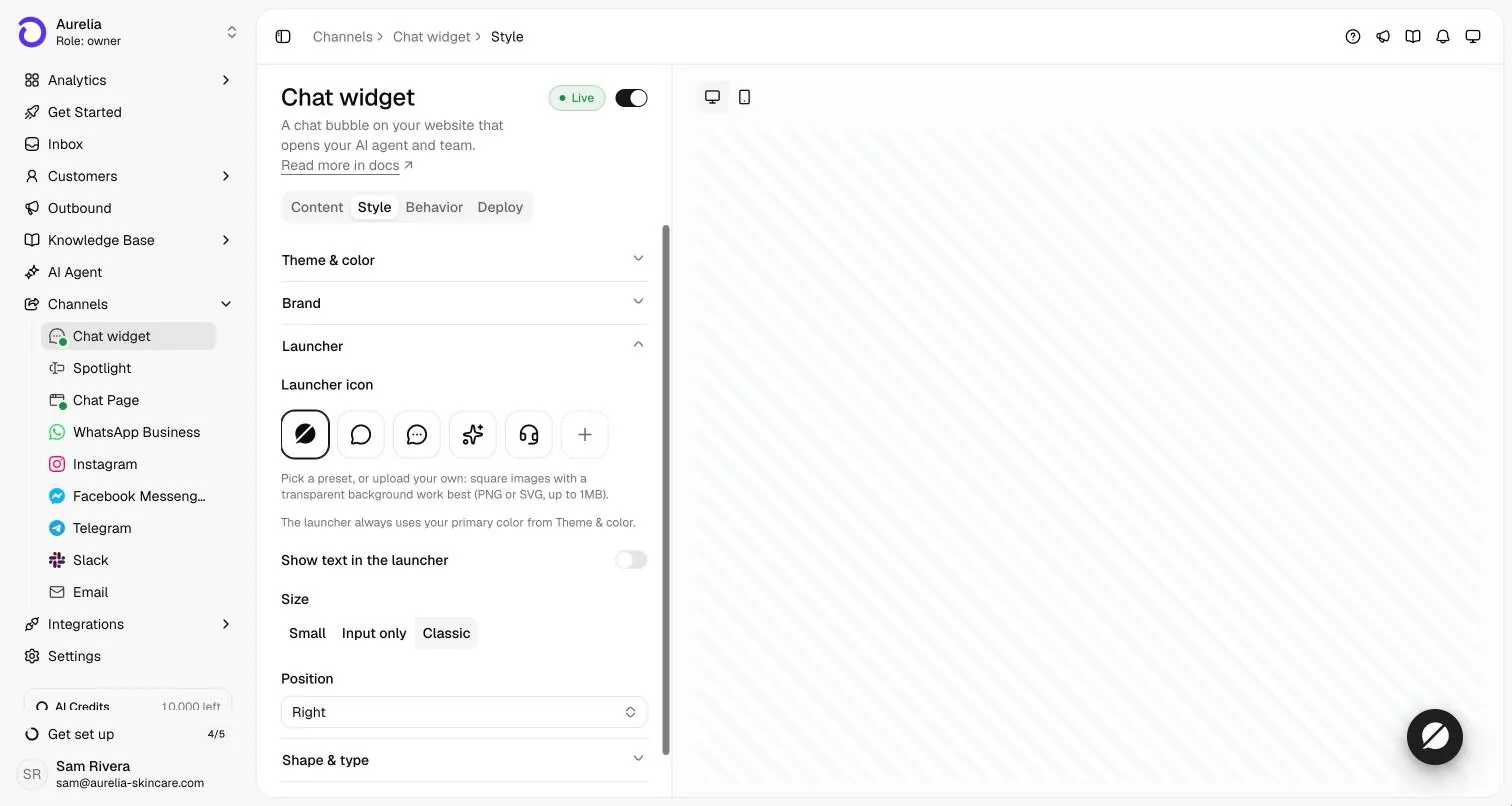
Style it in Asks, answer from one inbox.
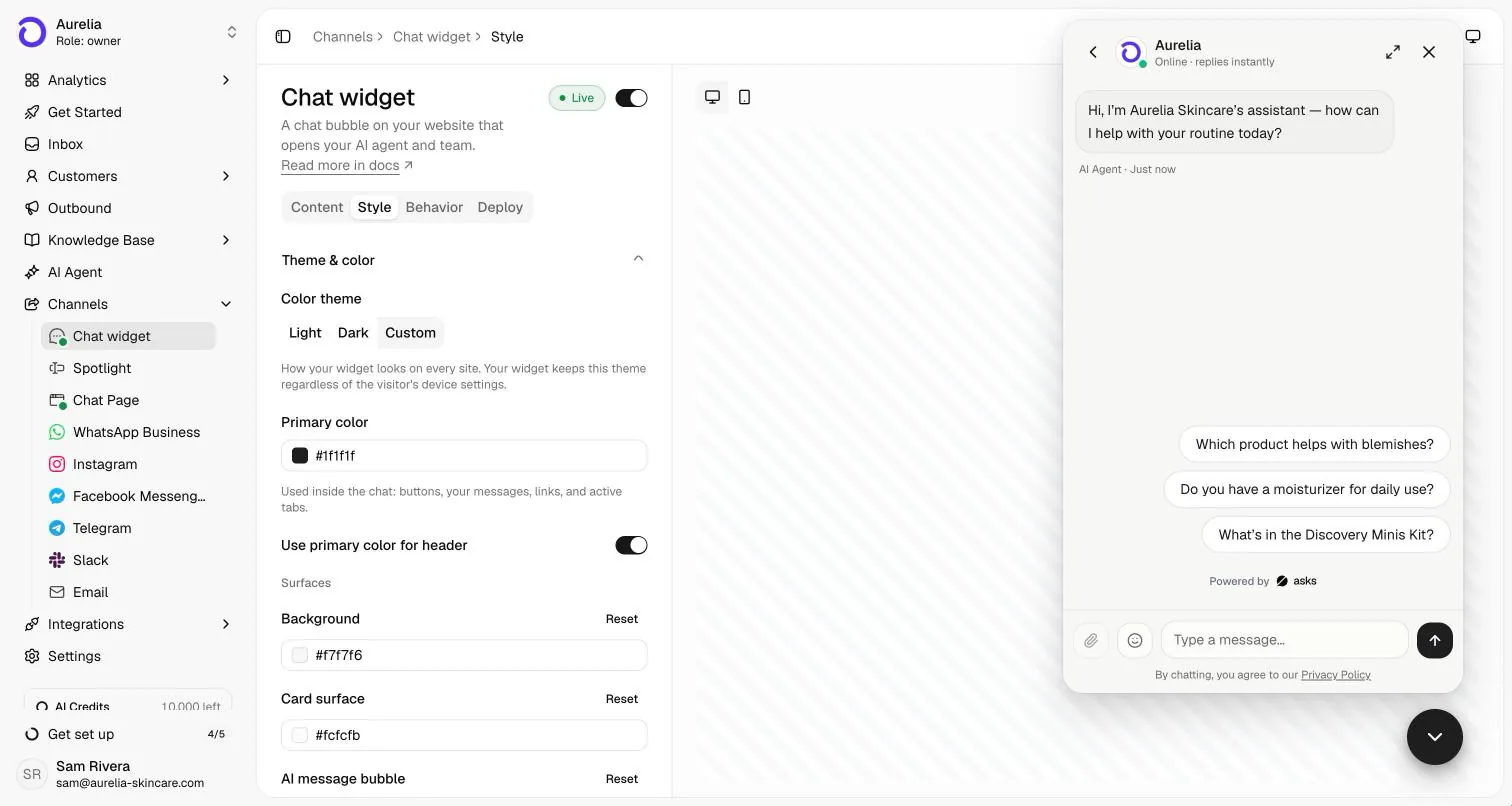
Colors, launcher and greeting live in Asks, so you change them without editing your site again.
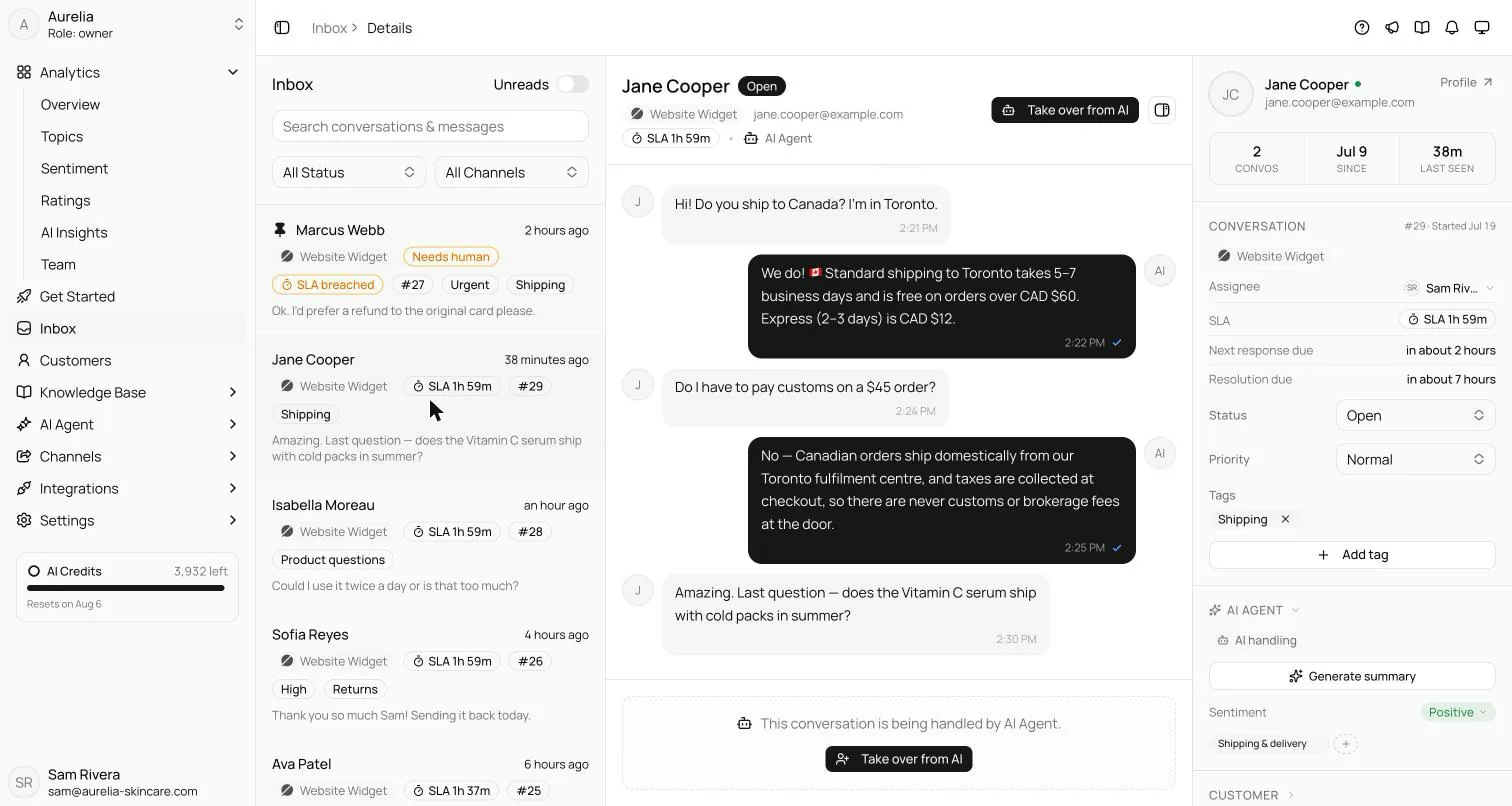
What the agent does once it’s on your pages is covered in AI chatbot for your website. For the bigger picture (staffing, live chat versus AI, what to measure), read how to add live chat to your website and how to train an AI chatbot on your own data.
FAQ
Questions, answered.
01How do I add an AI chatbot to my WordPress site?
Copy your widget snippet from Asks (Channels → Chat widget → Deploy) and add it to every page of your WordPress site, then publish. The full walkthrough is in our WordPress install guide on docs.asks.app.
02Do I need an Asks WordPress plugin?
No. The widget is one script tag, so any way of adding code to every page works: WPCode (free), your theme’s footer.php, or a footer-scripts setting your theme already has.
03Will the chatbot slow my site down?
The snippet loads one script asynchronously, so it doesn’t block your page from rendering.
04How does the chatbot know about my business?
When you sign up, you paste your website URL and Asks reads your pages to train the agent. You can add documents, help-center articles and Q&A, and the agent answers from that content; when it can’t support an answer, it hands the conversation to your team.

Live on WordPress before dinner.
Paste your URL, let the agent learn your site, copy one snippet into your site, and watch the first questions get answered.
7-day free trial · card required · cancel anytime