The inbox always knows whose turn it is
AI actions are now visible in every conversation, a “Needs human” badge and filter surface what actually needs you, and the customer panel was rebuilt around the answers agents look for.
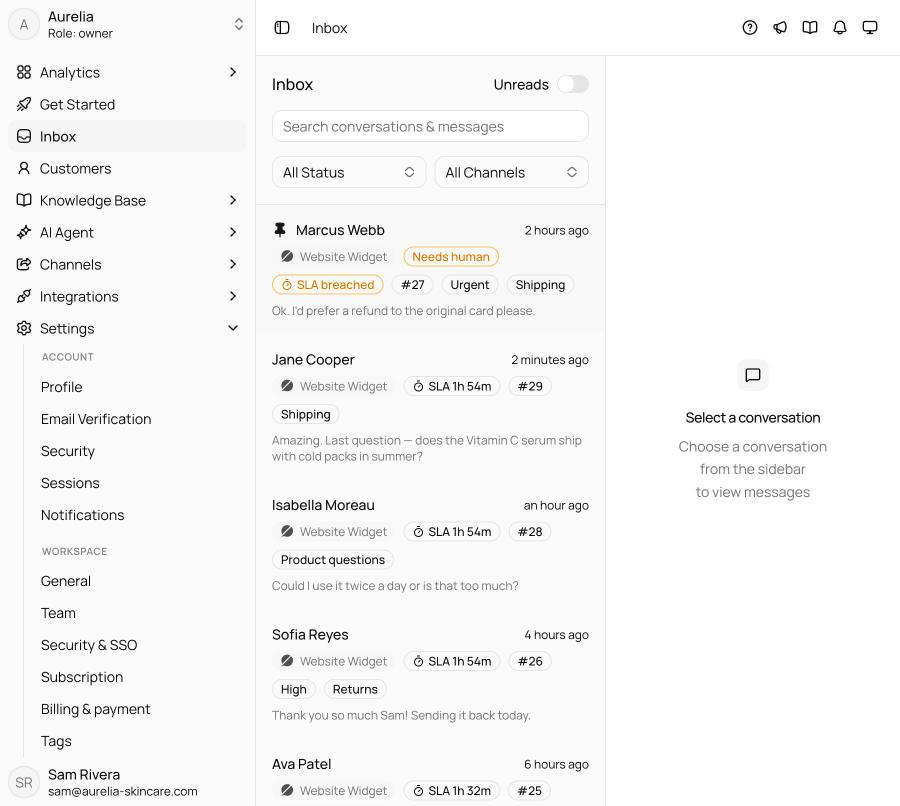
When AI and humans share an inbox, the one thing that can't be ambiguous is whose turn it is. Escalations and AI resolutions now show up as clear markers inside the conversation, every human reply carries the sender's name, and a Needs human badge — with a matching filter — puts the conversations waiting on your team front and center.
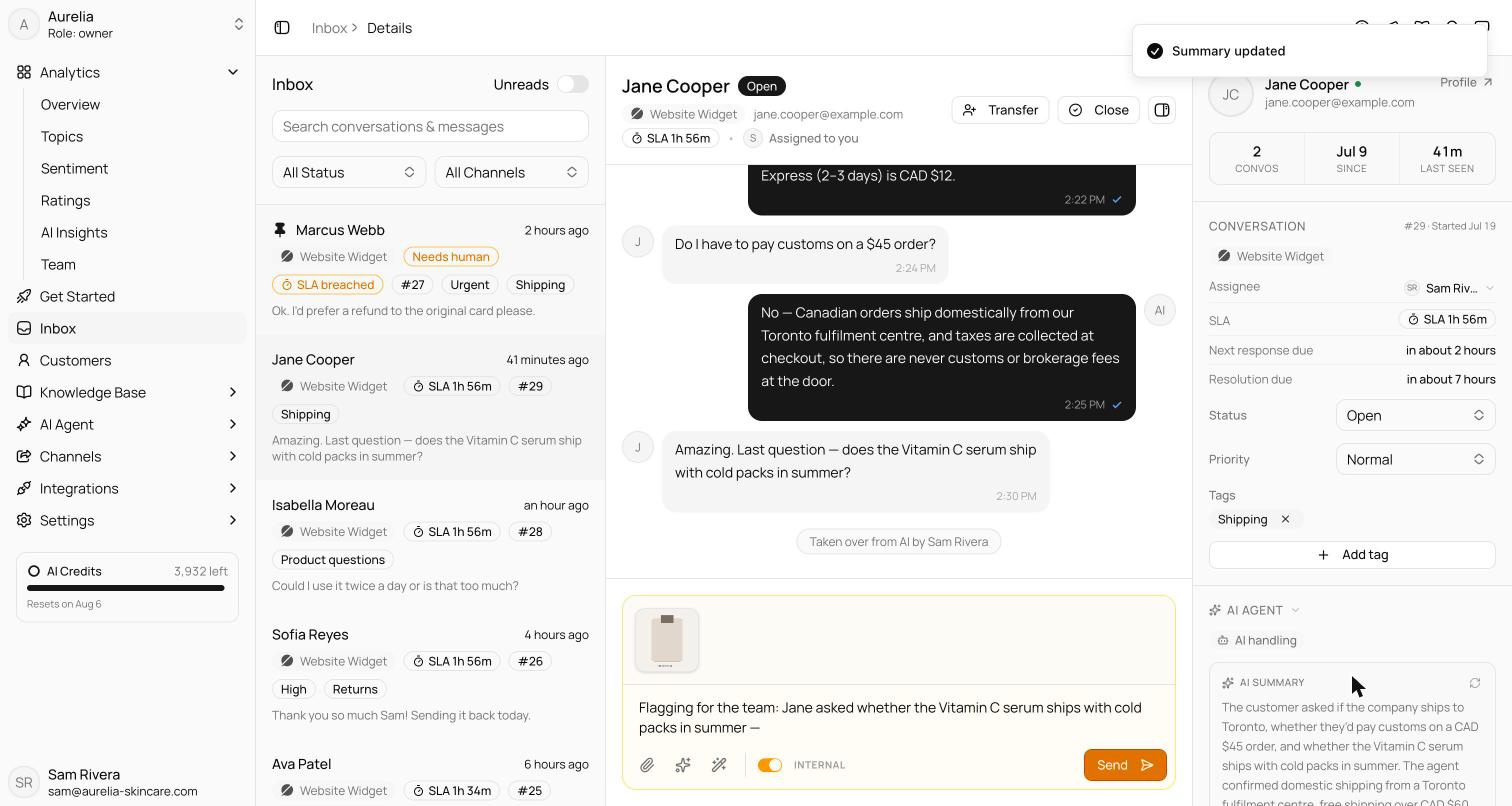
The customer panel on the right was rebuilt too: sentiment, CSAT, an AI summary of the conversation, and any details the agent collected — the things you used to scroll for, now at a glance.
Taking over, handing back
When the AI holds a conversation, the transcript header shows Take over from AI — click it and the AI stops replying and the composer unlocks. The Transfer menu routes conversations elsewhere: to a teammate, back to the AI (which resumes answering), or unassigned. Drafts survive transfers — if a teammate takes over mid-reply, your draft is preserved and restored when the conversation comes back. In the list, Needs humanis an assignment state, not a status: the AI escalated to your team's queue and won't pick the conversation back up.
The customer panel, rebuilt
The right pane now answers the questions agents actually look for. The AI Agent section shows how the AI is handling the conversation: resolution state, sentiment (correctable when the model gets it wrong), an AI summary you can generate or regenerate, detected language, editable topics, and any data captured through data collection or Actions. The Conversation section holds the assignee — click it to reassign right from the panel — plus ticket status, priority, tags, and CSAT stars when the customer left a rating.
Notes and Copilot in the composer
Flip the Internalswitch to write a note only your team can see — the composer turns amber so a note is never mistaken for a reply. Copilot (the wand button, or ⌘J) drafts a response grounded in your knowledge base, reworks what you've typed, or summarizes the whole thread before a transfer. It drafts; you decide — nothing it writes is ever sent on its own.
See what's new in your workspace
Everything on this page is live today. Asks trains on your website and resolves customer conversations on every channel — free to try, live in minutes.