Enterprise sign-in: SAML SSO, 2FA, and session control
SAML single sign-on with just-in-time provisioning and enforcement, two-factor authentication, and full session visibility with new-device alerts.
For teams with an identity provider, Asks now speaks SAML: SP-initiated single sign-on, just-in-time provisioning gated to your domain, an enforcement mode that makes SSO the only door in, and a break-glass owner path so a misconfigured IdP can't lock you out. Certificate-expiry alerts and an SSO audit log round it out.
For everyone: two-factor authentication on your account, a sessions page that shows every active device with one-click revocation, and email alerts on new-device logins and repeated failed attempts.
SSO in four steps
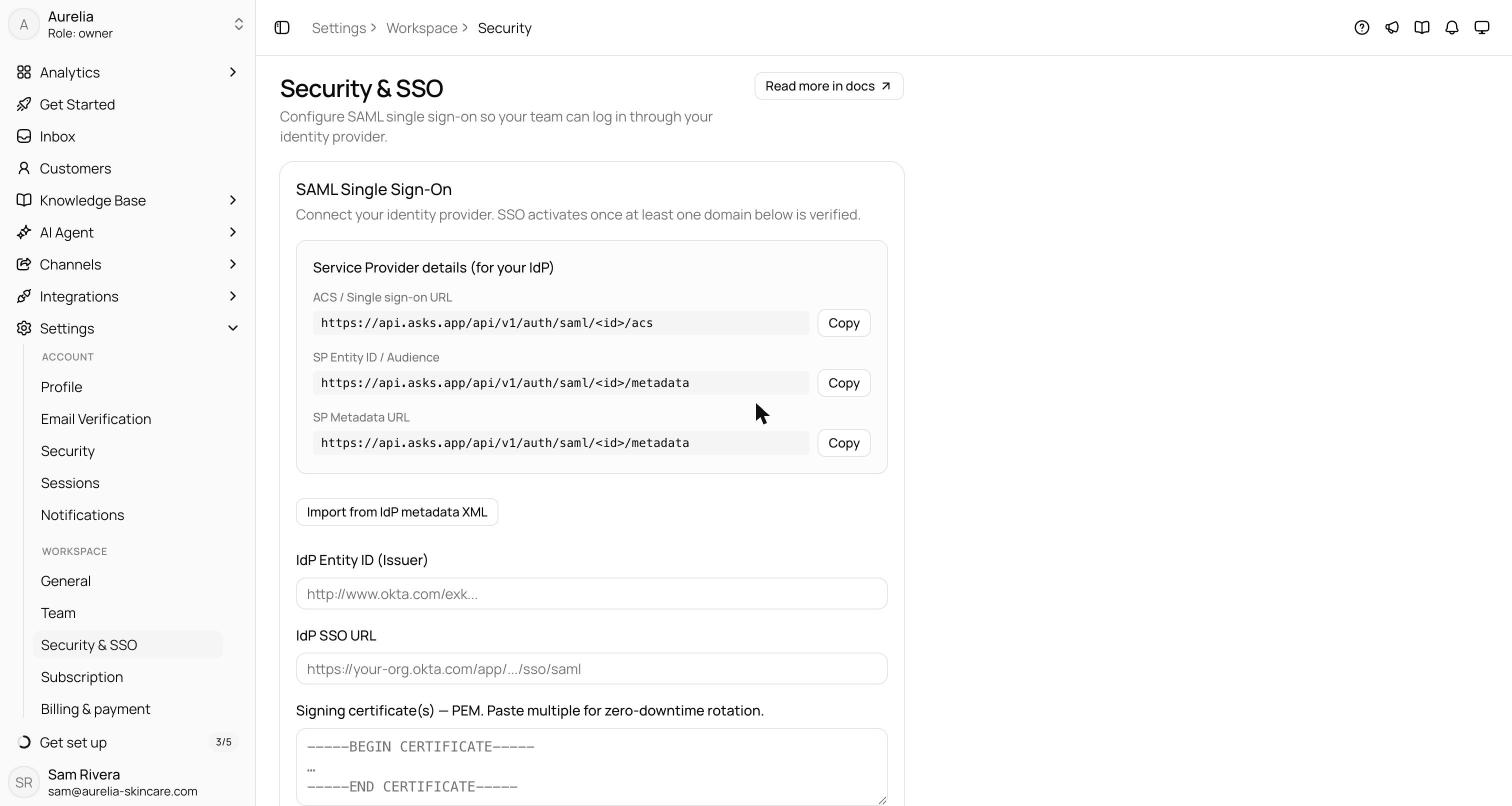
Asks implements SP-initiated SAML 2.0 and works with any compliant identity provider — Okta, Microsoft Entra, Google Workspace, and others. Configuration lives under Settings → Workspace → Security:
- 1Create the app in your IdPThe settings page shows the service-provider values — ACS URL and entity ID — to paste into your identity provider.
- 2Enter the IdP details in AsksProvide the IdP entity ID, the SSO URL, and the signing certificate. Map email and name attributes if your IdP uses non-standard names, and choose the default role new users get.
- 3Verify your email domainProve ownership with a DNS TXT record. Just-in-time provisioning is gated by verified domains: IdP users on a verified domain get a workspace seat automatically, with the default role you chose.
- 4Optionally enforce SSOWith Enforce SSO on, members must sign in through the IdP — password sign-in is rejected for the workspace.
Locked out is not an option
Two safety valves apply when SSO is enforced: owners and admins with 2FA enabled keep a break-glass password sign-in, and the sole owner is never locked out. Every break-glass sign-in and every SSO configuration change is recorded in an audit log and alerts the workspace owner and admins.
Your account: 2FA and sessions
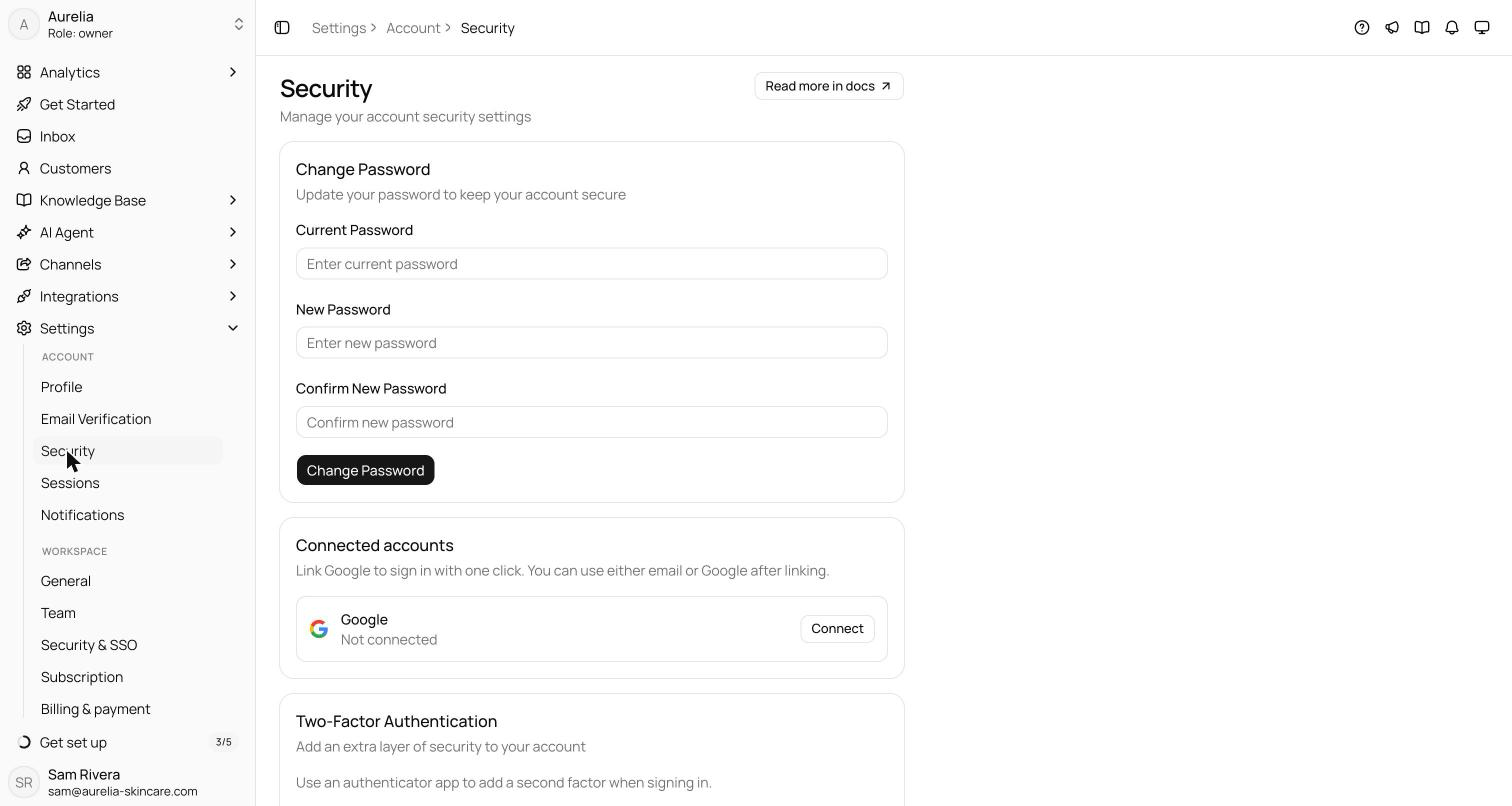
Two-factor authentication uses TOTP with any authenticator app — scan the QR code, confirm a code, and download the one-time recovery codes it generates (you can regenerate the set later with your password). Disabling 2FA requires your password and signs out your other sessions. The Sessionspage lists every device signed in to your account: revoke any you don't recognize, or revoke everything except the device you're on.
See what's new in your workspace
Everything on this page is live today. Asks trains on your website and resolves customer conversations on every channel — free to try, live in minutes.